Friday, June 08, 2018

Philips Meridian-5 chassis - 223V5LSB-00 - 21.5 inch LCD color monitor Factory mode, EDID data and other adjustments


Applicable to - 223V5LSB/00, 223V5LSB/01, 223V5LSB/27, 223V5LSB/62, 223V5LSB/74, 223V5LSB/75, 223V5LSB/86, 223V5LSB/93, 223V5LSB/94
223V5LSB2/00, 223V5LSB2/10, 223V5LSB2/57, 223V5LSB2/62, 223V5LSB2/69, 223V5LSB2/71, 223V5LSB2/93, 223V5LSB2/96, 223V5BSB2/93
223V5LHSB/00, 223V5LHSB/01, 223V5LHSB/11, 223V5LHSB/27, 223V5LHSB/69, 223V5LHSB/70, 223V5LHSW/11, 223V5LHSB2/57
Burn-in/Ghost image
Always activate a moving screen saver program when you leave your monitor unattended. Always activate a periodic screen refresh application if your monitor will display unchanging static content. Uninterrupted display of still or static images over an extended period may cause “burn in”, also known as “after-imaging” or “ghost imaging”, on your screen. "Burn-in", "after-imaging", or "ghost imaging" is a well-known phenomenon in LCD panel technology. In most cases, the “burned in” or “after-imaging” or “ghost imaging” will disappear gradually
over a period of time after the power has been switched off.
Failure to activate a screen saver, or a periodic screen refresh application may result in severe ” burn-in” or “after-image” or “ghost image” symptoms will not disappear and cannot be repaired. The damage mentioned above is not covered under your warranty
If you have VESA DPM compliance display card or software installed in your PC, the monitor can automatically reduce its power consumption when not in use. If an input from a keyboard, mouse or other input device is detected, the monitor will 'wake up' automatically. The following table shows the power consumption and signaling of this automatic power saving feature:
Pixel Defect
Philips strives to deliver the highest quality products.  Philips use some of the industry's most advanced manufacturing processes and practice stringent quality control. However, pixel or sub pixel defects on the TFT Monitor panels used in flat panel monitors are sometimes unavoidable. No manufacturer can guarantee that all panels will be free from pixel defects, but Philips guarantees that any monitor with an unacceptable number of defects will be repaired or replaced under warranty. This notice explains the different types of pixel defects and defines acceptable defect levels for each type. In order to qualify for repair or replacement under warranty, the number of pixel defects on a TFT Monitor panel must exceed these acceptable levels. For example, no more than 0.0004% of the sub pixels on a monitor may be
defective. Furthermore, Philips sets even higher quality standards for certain types or combinations of pixel defects that are more noticeable than others. This policy is valid worldwide.
Pixels and Sub pixels
A pixel, or picture element, is composed of three sub pixels in the primary colors of red, green and blue.
Many pixels together form an image. When all sub pixels of a pixel are lit, the three colored sub pixels together appear as a single white pixel. When all are dark, the three colored sub pixels together appear as a single black pixel. Other combinations of lit and dark sub pixels appear as single pixels of other colors.
Types of Pixel Defects
Pixel and sub pixel defects appear on the screen in different ways. There are two categories of pixel Pixel and sub pixel defects appear on the screen in different ways. There are two categories of pixel defects and several types of sub pixel defects within each category.
Bright Dot Defects
Bright dot defects appear as pixels or sub pixels that are always lit or 'on'. That is, a bright dot is a sub-pixel that stands out on the screen when the monitor displays a dark pattern. There are the types of bright dot defects.
A red or blue bright dot must be more than 50 percent brighter than neighboring dots while a green bright dot is 30 percent brighter than neighboring dots.
Black Dot Defects
Black dot defects appear as pixels or sub pixels that are always dark or 'off'. That is, a dark dot is a sub-pixel that stands out on the screen when the monitor displays a light pattern. These are the types of black dot defects.
Proximity of Pixel Defects
Because pixel and sub pixels defects of the same type that are near to one another may be more noticeable, Philips also specifies tolerances for the proximity of pixel defects.
Failure Mode Of Panel
Quick reference for failure mode of LCD panel
Presents problems that could be made by LCD panel. It is not necessary to repair circuit board. Simply follow the mechanical instruction on this manual to eliminate failure by replace LCD panel.
Click on the pictures to zoom in
How to enter into the factory mode:
1. Connect the VGA source and power off the monitor
2. Press < and the OK button at the same time, and Power ON the monitor, and then press the Menu again.  The Menu will appear on the top left corner.
{If you see this post by Web version, or by a desktop; you can see the 2nd step of Factory mode entry procedure illustrated here clearly}
3. Select the “Factory” and press the “MENU” button to enter the factory mode
White Balance, Luminance Adjustment
Apparatuses and program: analyzer CA-210, PC, tool, FGA adjustment program (PHILIPS LEDFGA.DDCI), Pattern generator.
Equipment installation:
a. Connect analyzer CA-210 to PC by USB connector, install drive program CA-SDK Ver4.00 for CA-210 and restart PC after finish installing
b. Install Port95NT drive program, set PC printer connector mode as ECP mode and reset PC after finish installing.
c. Connect tool as follow:
Note: It’s not necessary to connect Port2
Adjustment
Preparation before adjustment:
a. Monitor should be warmed up for more than half an hour.
b. Make sure that the tools are connected right and drive programs have been installed OK.
Adjustment process:
a. Press the power of CA-210, shut off the lens, press 0-Cal and open the lens after analyzer reset.
b. Open white balance adjustment program, select the right parameter according with the program and click OK.
c. Make sure that the lens of CA-210 aims at the center of the screen, then click START to adjust.
d. After finish adjusting, the adjustment program displays pass, and the START button changes for NEXT, which means that you can adjust another monitor.
DDC Instruction
take the 273E3 for example
General
DDC Data Re-programming
In case the main EEPROM with Software DDC which store all factory settings were replaced because a defect repaired monitor’ the serial numbers have to be re-programmed.
It is advised to re- soldered the main EEPROM with Software DDC from the old board onto the new board if circuit board have been replaced, in this case the DDC data does not need to be re-programmed.
Additional information about DDC (Display Data Channel) may be obtained from Video Electronics Standards Association (VESA). Extended Display Identification Data (EDID) information may be also obtained from VESA.
1. An i486 (or above) personal computer or compatible.
2. Microsoft operation system Windows 95/98/2000/XP.
3. LPT drive “PORT95NT.exe” and EDID tool “VGA_PHL.exe”
4. EDID Board (715GT034-B) x1,
5. Printer cablex1, VGA cable x 1, DVI-D cable x 1
6. 12V DC power source
7. EDID data
Connect the ISP board, PC and monitor as follow
Install the LPT drive
Restart the PC after the LPT driver installation
The process of writing EDID and SN
1. Rename the analog EDID to “wa.dat” and digital EDID to “wd.dat”.
2. Put the “wa.dat”, “wd.dat” and “config.ini” files into one folder named Philips 273E3.
Check the SN
1. Connect the VGA or DVI source and power on monitor.
2. Press the “MENU” button to enter the user menu. We can check the 14 digital SN on the bottom right of the menu.
eg
190V4L
If this SN number is the same as what we had written by EDID tool, the EDID and SN writing is completed finally
When you can’t burn in the EDID and SN, try the following ways.
1. AC on the monitor and turn on it.
2. Cut off the 5 pin of VGA cable terminal connected to monitor
3. Take apart the monitor and connect the 7pin of EEPROM to GND to disable write protection.
Can’t write error, try below few ways to cure can’t write errors!
1) AC on the monitor and turn on it.(Restart the monitor)
2) Take apart the monitor and connect the 7pin of EEPROM to GND to disable write protection then write EDID one by one.
3) Set the Burn in on to try again
DDC data values

Wednesday, June 06, 2018

55HFL5008D Philips LCD TV – service mode, software update, LED blinking codes and error codes


Service Default Mode (SDM)
Set the TV in SDM mode in order to be able to create a predefined setting for measurements to be made. In this platform, a simplified SDM is introduced (without protection override and without tuning to a predefined frequency).
Set linear video and audio settings to 50%, but volume to 25%. Stored user settings are not affected.
• All service-unfriendly modes (if present) are disabled, since they interfere with diagnosing/repairing a set. These service unfriendly modes are:
– (Sleep) timer.
– Blue mute/Wall paper.
– Auto switch “off” (when there is no “ident” signal).
– Hotel or hospital mode.
– Child lock or parental lock (manual or via V-chip).
– Skipping, blanking of “Not favorite”, “Skipped” or “Locked” presets/channels.
– Automatic storing of Personal Preset or Last Status settings.
– Automatic user menu time-out (menu switches back/OFF automatically.
– Auto Volume leveling (AVL)
To Activate SDM
To activate SDM, use the following methods:
• Press the following key sequence on the RC transmitter:
062596”, directly followed by the “Home” button.
After activating this mode, “SDM” will appear in the upper left corner of the screen.
On Screen Menu
After activating SDM, the following items are displayed, with SDM in the upper right corner of the screen to indicate that the television is in Service Default Mode. Menu items and explanation:
• xxxxx Operating hours (in decimal).
• AAAAB-X.YYY See Software Identification, Version, and Cluster for the software name definition.
• ERR Shows all errors detected since the last time the buffer was erased in format <xxx> <xxx> <xxx> <xxx> <xxx> (five errors possible).
• OP Used to read-out the option bytes. In this chassis two times eight option codes are used.
How to navigate
As this mode is read only, there is nothing to navigate. To switch to other modes, use one of the following methods:
• Command MENU from the user remote will exit SDM.
• To prevent the OSD from interfering with measurements in SDM, use the command “Adjust” or “Options” (“STATUS” or “INFO” for NAFTA and LATAM) from the user remote.
This will switch the OSD “off” while remaining in the SDM mode. The “SDM” OSD is remains visible in the upper right corner of the screen. To exit SDM switch to “Stand-by” mode.
• Press the following key sequence on the remote control transmitter: “062596” directly followed by the OK button to switch to SAM (do not allow the display to time out between entries while keying the sequence). 
Remarks: new remote controls will not have I+ button, but an “INFO” button instead.
To Exit SDM
• Switch the set to Stand-by by pressing the standby button on the remote control transmitter or on the television set.
• Via a standard customer RC-transmitter: key in “00”-sequence.
Note: If the TV is switched “off” by a power interrupt while in SDM, the TV will show up in the last status of SDM menu.
Service Alignment Mode (SAM)
To modify the NVM.
• To display/clear the error code buffer.
• To perform alignments.
Specifications
• Operation hours counter (maximum five digits displayed).
• Software version, error codes, and option settings display.
• Error buffer clearing.
• Option settings.
• Software alignments (White Tone).
• NVM Editor.
• Set screen mode to full screen (all content is visible)
To Activate SAM
To activate SAM, use one of the following methods:
• Press the following key sequence on the remote control transmitter: “062596”, directly followed by the “INFO” button. Do not allow the display to time out between entries while keying the sequence.
• Or via ComPair.
After entering SAM, the following items are displayed, with “SAM” in the upper right corner of the screen to indicate that the television is in Service Alignment Mode.
To Navigate
• In the SAM menu, select menu items with the UP/DOWN keys on the remote control transmitter. The selected item will be indicated. When not all menu items fit on the screen, use the UP/DOWN keys to display the next/previous menu items.
• With the “LEFT/RIGHT” keys, it is possible to:
– (De) activate the selected menu item.
– (De) activate the selected sub menu.
– Change the value of the selected menu item.
• When you press the MENU button once while in top level SAM, the set will switch to the normal user menu (with the SAM mode still active in the background).
• Press the following key sequence on the remote control transmitter: “062596” directly followed by the “Home” button to switch to SDM (do not allow the display to time out between entries while keying the sequence).
To Store SAM Settings
To store the settings changed in SAM mode (except the RGB Align settings), leave the top level SAM menu by using the POWER button on the remote control transmitter or the television set. The mentioned exceptions must be stored separately via the STORE button.
To Exit SAM
Use one of the following methods:
• Switch the set to STANDBY by pressing the mains button on the remote control transmitter or the television set.
• Via a standard RC-transmitter, key in “00” sequence.
Note: When the TV is switched “off” by a power interrupt while in SAM, the TV will show up in “normal operation mode” as soon as the power is supplied again. The error buffer will not be cleared.
Software Upgrading
The set software and security keys are stored in a NAND-Flash, which is connected to the PNX855xx.
It is possible for the user to upgrade the main software via the USB port. This allows replacement of a software image in a stand alone set, without the need of an E-JTAG debugger. A description on how to upgrade the main software can be found in the electronic User Manual.
Important: When the NAND-Flash must be replaced, a new SSB must be ordered, due to the presence of the security keys. (CI +, MAC address...).
Automatic Software Upgrade
In “normal” conditions, so when there is no major problem with the TV, the main software and the default software upgrade application can be upgraded with the “AUTORUN.UPG” (FUS part of the one-zip file: e.g. 3104 337 05661 _FUS _Q555X_ x.x.x.x_prod.zip). This can also be done by the consumers themselves, but they will have to get their software from the commercial Philips website or via the Software Update Assistant in the user menu (see eUM). The “autorun.upg” file must be placed in the root of the USB stick.
How to upgrade:
1. Copy “AUTORUN.UPG” to the root of the USB stick.
2. Insert USB stick in the set while the set is operational. The set will restart and the upgrading will start automatically. As soon as the programming is finished, a message is shown to remove the USB stick and restart the set.
Manual Software Upgrade
In case that the software upgrade application does not start automatically, it can also be started manually.
How to start the software upgrade application manually:
1. Disconnect the TV from the Mains/AC Power.
2. Press the “OK” button on a Philips TV remote control or a Philips DVD RC-6 remote control (it is also possible to use a TV remote in “DVD” mode). Keep the “OK” button pressed while reconnecting the TV to the Mains/AC Power.
3. The software upgrade application will start.
Attention
In case the download application has been started manually, the “autorun.upg” will maybe not be recognized.
What to do in this case:
1. Create a directory “UPGRADES” on the USB stick.
2. Rename the “autorun.upg” to something else, e.g. to “software.upg”. Do not use long or complicated names, keep it simple. Make sure that “AUTORUN.UPG” is no longer present in the root of the USB stick.
3. Copy the renamed “upg” file into this directory.
4. Insert USB stick into the TV.
5. The renamed “upg” file will be visible and selectable in the upgrade application.
Back-up Software Upgrade Application
If the default software upgrade application does not start (could be due to a corrupted boot sector) via the above described method, try activating the “back-up software upgrade application”.
How to start the “back-up software upgrade application” manually:
1. Disconnect the TV from the Mains/AC Power.
2. Press the “CURSOR DOWN”-button on a Philips TV remote control while reconnecting the TV to the Mains/AC Power.
3. The back-up software upgrade application will start.
Stand-by Software Upgrade via USB
In this chassis it is possible to upgrade the Stand-by software via a USB stick. The method is similar to upgrading the main software via USB.
Use the following steps:
1. Create a directory “UPGRADES” on the USB stick.
2. Copy the Stand-by software (part of the one-zip file, e.g. StandbyFactory_88.0.0.0.upg) into this directory.
3. Insert the USB stick into the TV.
4. Start the download application manually (see section “ Manual Software Upgrade” procedure stated above)
5. Select the appropriate file and press the “OK” button to upgrade.
Content and Usage of the One-Zip Software File
Below the content of the One-Zip file is explained, and instructions on how and when to use it.
• AmbiCpld_Q55XX_x.x.x.x_prod.zip. Contains the program instruction and software content, needed to upgrade the ambilight CPLD on the TV550 platform.
• BalanceFPGA_Q555X_x.x.x.x_prod.zip. Contains the BalanceFPGA software in “upg” format.
• FUS_Q555X_x.x.x.x_prod.zip. Contains the “autorun.upg” which is needed to upgrade the TV main software and the software download application.
• PNX5130UPG_Q555X_x.x.x.x_prod.zip. Contains the PNX5130 software in “upg” format.
• StandbySW_Q555X_x.x.x.x_prod.zip. Contains the StandbyFactory software in “upg” format.
• ProcessNVM_Q55XX_x.x.x.x_prod.zip. Default NVM content. Must be programmed via ComPair or can be loaded via USB, be aware that all alignments stored in NVM are overwritten here.
Error Codes
Error codes are required to indicate failures in the TV set. In principle a unique error code is available for every:
• Activated (SW) protection.
• Failing I2C device.
• General I2C error.
The last five errors, stored in the NVM, are shown in the Service menu’s. This is called the error buffer.  The error code buffer contains all errors detected since the last time the buffer was erased. The buffer is written from left to right. When an error occurs that is not yet in the error code buffer, it is displayed at the left side and all other errors shift one position to the right.
An error will be added to the buffer if this error differs from any error in the buffer. The last found error is displayed on the left.
An error with a designated error code never leads to a deadlock situation. It must always be diagnosable 
(e.g. error buffer via OSD or blinking LED or via ComPair)
In case a failure identified by an error code automatically results in other error codes (cause and effect), only the error code of the MAIN failure is displayed.
How to Read the Error Buffer
You can read the error buffer in three ways:
• On screen via the SAM/SDM/CSM (if you have a picture).
Example:
– ERROR: 000 000 000 000 000: No errors detected
– ERROR: 013 000 000 000 000: Error code 13 is the last and only detected error
– ERROR: 034 013 000 000 000: Error code 13 was detected first and error code 34 is the last detected (newest) error
• Via the blinking LED procedure (when you have no picture).
In this chassis only “layer 2” error codes are available and point to problems on the SSB. They are triggered by LED blinking when CSM is activated. Only the following layer 2 errors are defined:
To Clear the Error Buffer
The error code buffer is cleared in the following cases:
• By using the CLEAR command in the SAM menu
• By using the CLEAR command in the Factory mode:
• By using the following key sequence on the remote control transmitter: “062599” directly followed by the OK button.
• If the contents of the error buffer have not changed for 50 hours, the error buffer resets automatically.
Note: If you exit SAM by disconnecting the mains from the television set, the error buffer is not reset.
Blinking LED Procedure
The software is capable of identifying different kinds of errors.
Because it is possible that more than one error can occur over time, an error buffer is available, which is capable of storing the last five errors that occurred. This is useful if the OSD is not working properly.
Errors can also be displayed by the blinking LED procedure.  The method is to repeatedly let the front LED pulse with as many pulses as the error code number, followed by a period of 1.5 seconds in which the LED is “off”. Then this sequence is repeated.
Example 
(1) error code 4 will result in four times the sequence LED “on” for 0.25 seconds / LED “off” for 0.25 seconds. After this sequence, the LED will be “off” for 1.5 seconds. Any RC command terminates the sequence. Error code LED blinking is in red color.
 (2) the content of the error buffer is “12 9 6 0 0” After entering SDM, the following occurs.
• 1 long blink of 5 seconds to start the sequence.
• 12 short blinks followed by a pause of 1.5 seconds.
• 9 short blinks followed by a pause of 1.5 seconds.
• 6 short blinks followed by a pause of 1.5 seconds.
• 1 long blink of 1.5 seconds to finish the sequence.
• The sequence starts again with 12 short blinks
Displaying the Entire Error Buffer
Additionally, the entire error buffer is displayed when Service Mode “SDM” is entered.
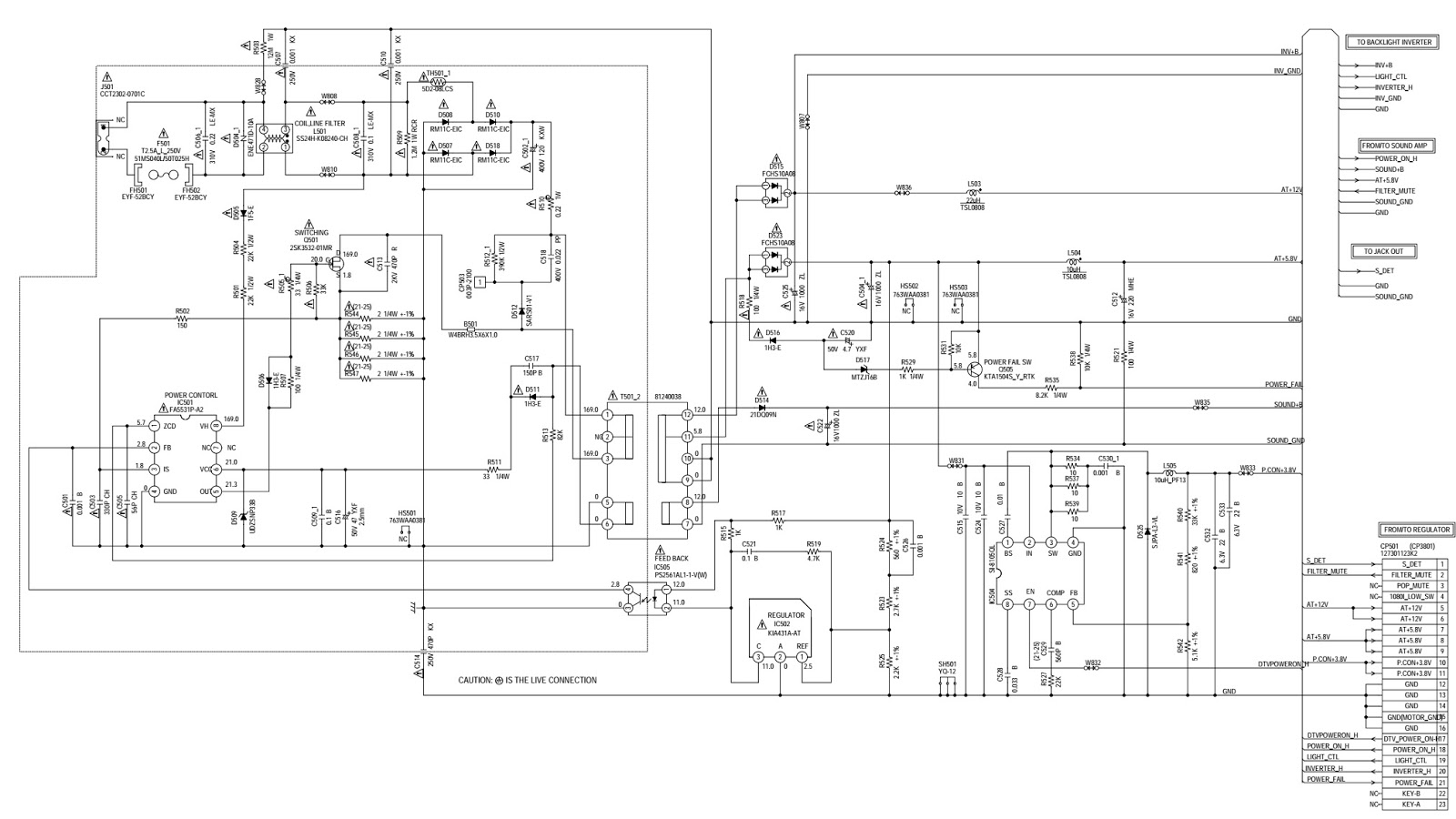
Schematic diagram of the power board of this set is of no use for technicians, as it is a back-box for service.  A new board of same number should be ordered if  this board is damaged.
There are two versions of SMPS board fitted with these sets. A 380GLP19001DE0 and  A 380GLP30014DE0.  Note the number before ordering a new one

Tuesday, June 05, 2018

How to enter the service mode, firmware update, SMPS schematic Toshiba 19 Inch LCD TV DVD combo 19DV555


Toshiba 19DV555DB, 19DV555DG, 19DV556DB, 19DV556DG 19 - inch Diagonal LCD TV/DVD COMBINATION – service mode, power section circuit diagram, software update, memory IC replacement and more
Parental control - rating level 4 digit password cancellation
If the stored 4 digit password in the Rating Level menu needs to be cancelled, please follow the steps below.
Turn Unit ON.
Set the DVD to the Stop Mode.
Check that “No disc” is displayed on the screen.
Press and hold the “STOP” button on the side panel.
Simultaneously press and hold the “7” key on the remote control unit.
Hold both keys for more than 2 seconds.
The On Screen Display message “PASSWORD CLEAR” will appear.
The 4 digit password has now been cleared.
Tray lock
The disk cannot be taken out by setting the Tray Lock, please follow the steps below.
Turn Unit ON.
Set the DVD to the Stop Mode.
Press it in order of “SETUP”, “SUBTITLE”, “3”, “AUDIO SELECT” and “0” key of a remote control unit.
The On Screen Display message will appear.
The Tray Lock has now been set up.
To unlock the Tray Lock, please follow the steps below.
Turn Unit ON.
Set the DVD to the Stop Mode.
Press it in order of “SETUP”, “SUBTITLE”, “3”, “AUDIO SELECT” and “0” key of a remote control unit.
The On Screen Display message will appear.
The Tray Lock has now been cleared.
Hotel mode function
To set the Hotel mode, please follow the steps below.
In power on mode, set the VOLUME to minimum.
Press and hold the VOLUME DOWN button on the side panel.
Simultaneously press and hold the channel button (7) on the remote control for more
than 2 seconds.
The Hotel mode setting menu will appear.
Using the UP/DOWN button on the remote control, select the desired item.
Then press the ENTER button.
Using the LEFT/RIGHT button on the remote control, set the item to desired setting.
The Hotel mode has now been set up.
To reset the Hotel mode, follow the steps below.
In power on mode, set the VOLUME to minimum.
Press and hold the VOLUME DOWN button on the side panel.
Simultaneously press and hold the channel button (7) on the remote control for more
than 2 seconds.
The Hotel mode setting menu will appear.
Using the UP/DOWN button on the remote control, select the RESET.
Then press the ENTER button.
The setting items have now been returned to initial value.
Even if setting it to “No Respond”, the remote control key operation in Hotel mode and service mode function are effective.
Even if setting it to “No Respond”, the service mode function are effective.
If setting it to “OFF”, it start up in same input source when you turn off the power before.
Disc removal method at no power supply
Remove the Back Cabinet and Angle Deck.
Slide the Belt Loading toward the arrow direction by hand to release the lock.
Take out the Disc from the DVD Deck. Be careful not to scratch on the Disc.
SMPS schematic
Power in-out schematic
Back-light inverter schematic
Service mode
This unit provided with the following SERVICE MODES so you can repair, examine and adjust easily.
To enter to the SERVICE MODE function, press and hold both buttons simultaneously on the main unit and on the remote control for more than a the standard time in the appropriate condition.
Re-write for DVD firmware
Up-Date Disc - JG176
Turn on the power, and set the DVD mode.
Confirm that the "No Disc" will be appeared on the screen.
Press both VOL. DOWN button on the set and Channel button (5) on the remote control for more than 2 seconds.
Press VOL. UP/DOWN button on the unit to check if all the keys on the unit do not function.
NOTE: To check if DVD Write mode is set.
When inserting Up-Date Disc at Non DVD Write mode, the read error will happen.
Insert the Up-Date Disc. (Refer to SERVICING FIXTURE AND TOOLS)
Automatic read will start and "Firmware upgrade Please Wait" will be displayed on the screen.
At this time, the horizontal noise lines may appear. But no problem.
NOTE: Do not turn off the unit on the way or operate the keys on the unit and remocon.
Up-Date error will happen and can not be done with the Up-Date of Up-Date Disc.
After the Up-Date, Logo screen will appear.
Unplug the AC cord, then plug it in.
After the write, set to the initializing of shipping.
Turn on the power, and set the DVD mode.
Press both VOL. DOWN button on the set and Channel button (4) on the remote control for more than 2 seconds.
The "INITIALIZE 5 ---> COMPLETE" will appear on the screen.
Then unplug the AC cord, and plug it in.
CHECK FOR THE FIRMWARE VERSION
Turn on the power, and set the DVD mode.
Press both Channel button (1) on the remote control and the STOP button on the set for more than 2 seconds.
Firmware version will be displayed on the top left of the screen.
When the changed version displays, the Re-write will be completed
Turn off the power.
Replacing EEPROM (memory) IC
Confirmation of check sum, power on total hours and MICOM version
Initial total of MEMORY IC, POWER ON total hours and MICON VERSIONcan be checked on the screen. Total hours are displayed in 16 system of notation.
[If you set a factory initialization, the total hours is reset to "0". refer to "CONFIRMATION OF INITIAL DATA" when SUM DATA is not corresponding.]
Turn on the POWER, and set to the TV mode.
Set the VOLUME to minimum.
Press both VOL. DOWN button on the set and Channel button (2) on the remote control for more than 2 seconds.
After the confirmation of each check sum, turn off the power.
Confirmation of initial data
If a service repair is undertaken where it has been required to change the MEMORY IC, the following steps should be taken to ensure correct data settings while making reference to INITIAL SETTING TABLE
Turn on the POWER, and set to the TV mode.
Set the VOLUME to minimum.
Press both VOL. DOWN button on the set and Channel button (6) on the remote control for more than 2 seconds.
ADDRESS and DATA should appear.
[No need to set data other position than 0D00~0E3F and 1000~7FFF]
ADDRESS is now selected and should "blink". Using the UP/DOWN buton on the remote, step through the ADDRESS until required ADDRESS to be changed is reached.
Press LEFT/RIGHT button to select DATA. When DATA is selected, it will "blink".
Again, step through the DATA using UP/DOWN button until required DATA value has been selected.
Pressing LEFT/RIGHT button will take you back to ADDRESS for further selection if necessary.
Repeat steps 4 to 6 until all data has been checked.
When satisfied correct DATA has been entered, turn POWER off (return to STANDBY MODE) to finish DATA input.
After the data input, set to the initializing of shipping.
Turn on the POWER.
Set the VOLUME to minimum
Press both VOL. DOWN button on the set and Channel button (1) on the remote control for more than 2 seconds.
After the finishing of the initializing of shipping, the unit will turn off automatically.
The unit will now have the correct DATA for the new MEMORY IC.

Saturday, May 26, 2018

LED LCD TV – Philips 40HFL5010T alignment procedure – Applicable to all HFL xxxx series Philips LCD TVs


General Alignment Conditions
Perform all electrical adjustments under the following conditions:
• Power supply voltage: 90 - 264 VAC, 50/ 60
± 3 Hz.
• Connect the set to the mains via an isolation transformer with low internal resistance.
• Allow the set to warm up for approximately 15 minutes.
• Measure voltages and waveforms in relation to correct ground (e.g. measure audio signals in relation to AUDIO_GND).
Caution: It is not allowed to use heat sinks as ground.
• Test probe: Ri > 10 M
W, Ci < 20 pF.
• Use an isolated trimmer/screwdriver to perform alignments.
Hardware Alignments: Not applicable.
Software Alignments
Put the set in SAM mode (see Chapter 5. Service Modes, Error Codes, and Fault Finding at previous post here). The SAM menu will now appear on the screen. Select RGB Align and go to one of the sub menus.
The alignments are explained below.
The following items can be aligned:
• White point.
To store the data:
• Press OK on the RC before the cursor is moved to the left.
• Select “Store” and press OK on the RC.
• Switch the set to stand-by mode.
For the next alignments, supply the following test signals via a video generator to the RF input:
• EU/AP-PAL models: a PAL B/G TV-signal with a signal strength of at least 1 mV and a frequency of 475.25 MHz
• US/AP-NTSC models: an NTSC M/N TV-signal with a signal strength of at least 1 mV and a frequency of 61.25 MHz (channel 3).
• LATAM models: an NTSC M TV-signal with a signal strength of at least 1 mV and a frequency of 61.25 MHz (channel 3)
Before alignment, set the picture as follows
White Tone Alignment
• Activate SAM.
• Select “RGB Align.” and choose a color temperature.
• Use a 100% white screen as input signal and set the following values:
– “Red BL Offset” and “Green BL Offset” to “7” (if present).
– All “White point” values initial to “128”
In case you have a colour analyser:
• Measure with a calibrated (phosphor- independent) color analyser (e.g. Minolta CA-210) in the centre of the screen.
Consequently, the measurement needs to be done in a dark environment.
• Adjust the correct x, y coordinates (while holding one of the White point registers R, G or B on max. value) by means of decreasing the value of one or two other white points to the correct x, y coordinates (see Table below). Tolerance: dx:
± 0.003, dy: ± 0.003.
• Repeat this step for the other colour Temperatures that need to be aligned.
• When finished return to the SAM root menu and press STANDBY on the RC to store the aligned values to the NVM.
If you do not have a colour analyser, you can use the default values. This is the next best solution. The default values are average values coming from production (statistics).
Display Adjustment
You can use the default values. The default values are average values coming from production.
• Enter SAM mode.
• Select a colour temperature (e.g. COOL, NORMAL, or WARM).
• Set the RED, GREEN and BLUE default values according to the values in back to div.table below.
• When finished press OK on the RC, then press STORE to store the aligned values to the NVM.
• Restore the initial picture settings after the alignments.
Click on the tables to magnify
This group setting of colour temperature will be applied automatically to the TV / VGA / HDMI / AV / YPbPr sources.
Option Settings
The microprocessor communicates with a large number of I2C ICs in the set. To ensure good communication and to make digital diagnosis possible, the microprocessor has to know which ICs to address. The presence / absence of these MT5580 ICs is made known by the option codes.
After changing the option(s), save them by pressing the OK button on the RC before the cursor is moved to the left, select STORE and press OK on the RC.
 The new option setting is only active after the TV is switched “off” / “stand-by” and “on” again with the mains switch (the NVM is then read again).
Option Code Overview
Enter SAM mode to check the option codes. they could be edited in the NVM
Display Code Overview
Press the following key sequence on a standard RC transmitter: “062598” directly followed by MENU and “xxx”, where “xxx” is a 3 digit decimal value of the panel type: see column “Display Code” in back to div.table above. After resetting the Display Code, restart the set immediately.
Reset of Repaired SSB
A very important issue towards a repaired SSB from a Service repair shop (SSB repair on component level) implies the reset of the NVM on the SSB.
A repaired SSB in Service should get the service Set type “00PF0000000000” and Production code “00000000000000”.
Also the virgin bit is to be set. To set all this, you can use the ComPair tool or use the “NVM editor” and “Dealer options” items in SAM (do not forget to “store”).
After a repaired SSB has been mounted in the set (set repair on board level), the type number (CTN) and production code of the TV has to be set according to the type plate of the set. For this, you can use the NVM editor in SAM. The loading of the CTN and production code can also be done via compare (Model number programming)
In case of a display replacement, reset the “Operation hours display” to “0”, or to the operation hours of the replacement display.
Remark:
- After the NVM has been replaced, go to SAM and scroll to the <Reload MAC address>
- Select the item and press <OK> on the RC
Reset of Repaired SSB
After NVM replacement, reload MAC address via SAM menu. This ensures the correct MAC address to be available in CSM for future repair actions.
Way of working:
• After the NVM has been replaced, go to SAM and scroll to the <Reload MAC address> .
• Select the item and press <OK> on the RC.
[Only applicable to all related models that are “Smart TV level 0”enabled (only YouTube access). For models without internet connection feature, no action is needed.   HDCP keys are located in the NVM. If you are loading NVM with the ComPair tool, there is warning message displayed.]
New NVM EEPROMs are shipped with pre-loaded HDCP keys.
SSB Identification
SSB’s of this chassis are identified by a “715” code on the SSB. [715Axxxx-Nnn-MMM-OOOO]
715 main category, Printed Wiring Board
 Axxxx sub category, sequential coding number
 Nnn Version code
 N Development number
 nn Production number
 MMM Mounting variation code
 OOOO Optional variation code
Make sure when replacing an SSB the SSB identification codes match the replacement panel.

40HFL5010T Philips LED LCD TV Service mode and adjustments, firmware update, Error codes, LED blinking codes and more


Philips 40HFL5010T/12 - Chassis TPM15.3HE LA - Service Modes, Error Codes, and Fault Finding

Software Identification, Version, and Cluster
The software ID, version, and cluster will be shown in the main menu display of SAM and CSM.
The screen will show: “AAAAAAB-XXX.YYY.MMM.TTT”, where:
• AAAAAA is the chassis name: TPN141HE/TPN142HE.
• B is the region indication: E = Europe, A = AP/China, U = NAFTA, L = LATAM.
• XXX is the main version number: this is updated with a major change of specification (incompatible with the previous software version). Numbering will go from 0- 255.
• YYY is the sub version number: this is updated with a minor change of specification (incompatible with the previous versions). Numbering will go from 0- 255.
• MMM is the number of the mandatory (upgrade) release in association with the area of the mandatory (upgrade) release. Numbering will go from 0 - 255.
• TTT bit 7 to 1 is the area of the mandatory (upgrade) release where 0 - none, 1 - Netflix, rest reserved.
• TTT bit 0 : 0 = development release, 1 = production release.
Display Option Code Selection
When after an SSB or display exchange, the display option code is not set properly, it will result in a TV with “no display”.
Therefore, it is required to set this display option code after such a repair.
To do so, press the following key sequence on a standard RC transmitter: “062596” directly followed by MENU and “xxx”, where “xxx” is a 3 digit decimal value of the panel type.

 When the value is accepted and stored in NVM, the set will switch to Stand-by, to indicate that the process has been completed.  During this algorithm, the NVM-content must be filtered, because several items in the NVM are TV-related and not SSB related (e.g. Model and Prod. S/N). Therefore, “Model” and “Prod. S/N” data is changed into “See Type Plate”. In case a call centre or consumer reads “See Type Plate” in CSM mode.
Life Timer
During the life time cycle of the TV set, a timer is kept (called “Op. Hour”). It counts the normal operation hours (not the Stand-by hours). The actual value of the timer is displayed in SAM in a decimal value. Every two soft-resets increase the hour by + 1. Stand-by hours are not counted.
Service Alignment Mode (SAM)
To activate SAM, use one of the following methods:
• Press the following key sequence on the remote control transmitter: “062596”, directly followed by the “OK/INFO” button. Do not allow the display to time out between entries while keying the sequence.
• Or via ComPair.
After entering SAM, the following items are displayed, with “SAM” in the upper right corner of the screen to indicate that the television is in Service Alignment Mode.
How to Navigate
• In the SAM menu, select menu items with the UP/DOWN keys on the remote control transmitter. The selected item will be indicated. When not all menu items fit on the screen, use the UP/DOWN keys to display the next/previous menu items.
• With the “LEFT/RIGHT” keys, it is possible to:
– (De) activate the selected menu item.
– (De) activate the selected sub menu.
– Change the value of the selected menu item.
• When you press the MENU button once while in top level SAM, the set will switch to the normal user menu (with the SAM mode still active in the background)
How to Store SAM Settings
To store the settings changed in SAM mode (except the RGB Align settings), leave the top level SAM menu by using the POWER button on the remote control transmitter or the television set. The mentioned exceptions must be stored separately via the STORE button.
How to Exit SAM
Use one of the following methods:
• Switch the set to STANDBY by pressing the mains button on the remote control transmitter or the television set.
• Via a standard RC-transmitter, key in “00” sequence.
Note: When the TV is switched “off” by a power interrupt while in SAM, the TV will show up in “normal operation mode” as soon as the power is supplied again. The error buffer will not be cleared.
How to Activate the Factory mode
To activate the Factory mode, use the following method: 
• Press the following key sequence on the remote control transmitter: from the “Menu/Home screen” press “1999”, directly followed by the “Back” button. Do not allow the display to time out between entries while keying the sequence.
How to Exit the Factory mode
Use one of the following methods:
• Select EXIT_FACTORY from the menu and press the “OK” button.
Note: When the TV is switched “off” by a power interrupt, or normal switch to “stand-by” while in the factory mode, the TV will show up in “normal operation mode” as soon as the power is supplied again. The error buffer will not be cleared.
Customer Service Mode (CSM)
The Customer Service Mode shows error codes and information on the TVs operation settings. The call centre can instruct the customer (by telephone) to enter CSM in order to identify the status of the set.This helps the call centre to diagnose problems and failures in the TV set before making a service call. The CSM is a read-only mode; therefore, modifications are not possible in this mode.
Specifications
• Ignore “Service unfriendly modes”.
• Line number for every line (to make CSM language independent).
• Set the screen mode to full screen (all contents on screen is visible).
• After leaving the Customer Service Mode, the original settings are restored.
• Possibility to use “CH+” or “CH-” for channel surfing, or enter the specific channel number on the RC.
To activate CSM, press the following key sequence on a standard remote control transmitter: “123654” (do not allow the display to time out between entries while keying the sequence).
After entering the Customer Service Mode, the following items are displayed.
Contents of CSM
 1.1 Set Type This information is very helpful for a helpdesk/workshop as reference for further diagnosis. In this way, it is not necessary for the customer to look at the rear of the TV-set. Note that if an NVM is replaced or is initialized after corruption, this set type has to be re-written to NVM.
 1.2 Production code Displays the production code (the serial number) of the TV. Note that if an NVM is replaced or is initialized after corruption, this production code has to be re-written to NVM.
 1.3 Installation date Indicates the date of the first installation of the TV. This date is acquired via time extraction.
 1.4a Option Code 1 Gives the option codes of option group 1 as set in SAM.
 1.4b Option Code 2 Gives the option codes of option group 2 as set in SAM.
 1.5 SSB Gives an identification of the SSB as stored in NVM. Note that if an NVM is replaced or is initialized after corruption, this identification number has to be re-written to NVM. This identification number is the 12NC number of the SSB.
 1.6 Display 12NC NVM read/write.
 1.7 PSU 12NC NVM read/write.
 2.1 Current Main SW Displays the built-in main software version. In case of field problems related to software, software can be upgraded. As this software is consumer upgradeable, it will also be published on the internet.
 2.2 Development SW Version Displays the built-in main software version. In case of field problems related to software, software can be upgraded. As this software is consumer upgradeable, it will also be published on the internet.
 2.3 Standby SW Displays the built-in stand-by processor software version. Upgrading this software will be possible via USB.
 2.4 Panel Code Displays the Display Code number.
 2.5 Bootloader ID ID of Bootloader.
 2.6 NVM version Detects and displays NVM version.
 2.7 Flash ID ID of flash model.
 2.8 e-UM version eDFU (help) version.
 2.9 Channel Table Structure Version version of channel table structure.
• 2.10 Error Codes Detects and displays errors.
 3.1 Signal Quality Analog/digital signal strength.
 3.2 Child lock Not active / active. This is a combined item for locks. If any lock (channel lock, parental lock) is active, it is indicated as “active”.
 3.3 HDCP keys Indicates the validity of the HDMI keys (or HDCP keys). In case these keys are not valid and the customer wants to make use of the HDMI functionality, the SSB has to be replaced.
 3.4 Ethernet MAC address A Media Access Control address (MAC address) is a unique identifier assigned to network interfaces for communications on the physical network segment.
 3.5 Wireless MAC address Wireless Media Access Control address.
 3.6 BDS key for Hotel model only.
 3.7 CI module check if CI card is insert.
 3.8 CI+ protected service CI+ key status.
 3.4 Ethernet MAC address A Media Access Control
address (MAC address) is a unique identifier assigned to network interfaces for communications on the physical network segment.
 3.5 Wireless MAC address Wireless Media Access Control address.
 3.6 BDS key for Hotel model only.
 3.7 CI module check if CI card is insert.
 3.8 CI+ protected service CI+ key status.
How to Navigate
By means of the “CURSOR-DOWN/UP” knob (or the scroll wheel) on the RC-transmitter, can be navigated through the menus.
To Exit CSM
To exit CSM, use one of the following methods.
• Press the MENU/HOME button on the remote control transmitter.
• Press the POWER button on the remote control transmitter.
• Press the POWER button on the television set.
Compare
ComPair (Computer Aided Repair) is a Service tool for Philips Consumer Electronics products. and offers the following:
1. ComPair helps to quickly get an understanding on how to repair the chassis in a short and effective way.
2. ComPair allows very detailed diagnostics and is therefore capable of accurately indicating problem areas. No knowledge on I2C or UART commands is necessary, because ComPair takes care of this.
3. ComPair speeds up the repair time since it can automatically communicate with the chassis (when the micro processor is working) and all repair information is directly available.
4. ComPair features TV software up possibilities.
ComPair consists of a Windows based fault finding program and an interface box between PC and the (defective) product. The ComPair II interface box is connected to the PC via an USB cable. For the TV chassis, the ComPair interface box and the TV communicate via a bi-directional cable via the service connector(s).
The ComPair fault finding program is able to determine the problem of the defective television, by a combination of automatic diagnostics and an interactive question/answer procedure.
To Connect
This is described in the chassis fault finding database in ComPair.
[It is compulsory to connect the TV to the PC as shown in the picture below (with the ComPair interface in between), as the ComPair interface acts as a level shifter. If one connects the TV directly to the PC (via UART), ICs can be blown]
To Order
ComPair II order codes:
• ComPair II interface: 3122 785 91020.
• Software is available via the Philips Service web portal.
• ComPair UART interface cable for TPM10.1x xx. (using DB9 to 2mm pitch JST connector): 3122 785 90630.
ComPair II interface connection
Software Upgrading
Preparing a portable memory for software upgrade
The following requirements have to be met:
1. A personal computer connected to the internet.
2. An archive utility that supports the ZIP-format (e.g. WinZip for Windows or Stufflt for Mac OS).
3. A FAT formatted USB memory stick (preferably empty)
Note:
1. Only FAT/DOS-formatted memory sticks are supported.
2. Only use software update files that can be found on the "http://www.philips.com/" support web site.
Check the current TV software version
Before starting the software upgrade procedure, it is advised to check that what the current TV software:
1. Press the “1 2 3 6 5 4” button on the remote control to enter the CSM (Customer Service Mode).
2. Use the up/down cursor keys to select “Current Main Software”.
If the current software version of the TV is the same as the latest update file found on http://www.philips.com/support, it is not necessary to update the TV software.
Download the latest software
1. Open the internet page http://www.philips.com/support.
2. Find information and software related to the TV.
3. Select the latest software update file and download it to the PC.
4. Insert the USB memory stick into one of the USB ports of the PC.
5. Decompress the downloaded ZIP file and copy it to the root directory of the USB flash drive.
Update the TV software
1. Turn the TV on and wait for it to boot completely.
2. Insert the USB memory stick that contains the software update files in one of the TV’s USB ports.
3. The TV will detect the USB memory stick automatically. Then a window jumps out as .
Note: If the USB flash drive is not detected after power up, disconnect it and re-insert it.
4. Select [Update] and press OK.
5. To proceed, In next menu select [Start] and press OK to start software updates.
6. Upgrading will now begins and the status of the updating progress will be displayed.
7. When the TV software is updated. Remove your USB flash drive, then select [Restart] and press OK to restart the TV. 
FUS_clustername_version.zip: Contains the
“autorun.upg” which is needed to upgrade the TV main software and the software download application.
• NVM_clustername_version.zip: Default NVM content.
Must be programmed via ComPair.
To Copy NVM Data to/from USB
When copying data to and from a USB memory stick, the folder “repair” is used. When inserting an empty USB memory stick, and downloading data to the stick, the TV will create this folder.
When sending data from a USB memory stick to a TV, the intended data must be available in the “repair” folder.
Note that when copying EDID data to the TV, all necessary EDID files must be in this folder.
Error Codes
Error codes are required to indicate failures in the TV set. In principle a unique error code is available for every:
• Activated (SW) protection.
• Failing I2C device.
• General I2C error.
The last five errors, stored in the NVM, are shown in the Service menu’s. This is called the error buffer.
The error code buffer contains all errors detected since the last time the buffer was erased. The buffer is written from left to right. When an error occurs that is not yet in the error code buffer, it is displayed at the left side and all other errors shift one position to the right.
An error will be added to the buffer if this error differs from any error in the buffer. The last found error is displayed on the left.
An error with a designated error code never leads to a deadlock situation. It must always be diagnosable (e.g. error buffer via OSD or blinking LED or via ComPair).
In case a failure identified by an error code automatically results in other error codes (cause and effect), only the error code of the MAIN failure is displayed.
To Read the Error Buffer
On screen via the SAM/SDM/CSM (if you have a picture).
Example:
– ERROR: 000 000 000 000 000: No errors detected
– ERROR: 013 000 000 000 000: Error code 13 is the last and only detected error
– ERROR: 034 013 000 000 000: Error code 13 was detected first and error code 34 is the last detected (newest) error.
Via the blinking LED procedure (when you have no picture)
In this chassis only “layer 2” error codes are available and point to problems on the SSB. They are triggered by LED blinking when CSM is activated. Only the following layer 2 errors are defined.
To Clear the Error Buffer
The error code buffer is cleared in the following cases:
• By using the CLEAR command in the SAM menu
• By using the CLEAR command in the Factory mode:
• By using the following key sequence on the remote control transmitter: “062599” directly followed by the OK button.
• If the contents of the error buffer have not changed for 50 hours, the error buffer resets automatically.
Note: If you exit SAM by disconnecting the mains from the television set, the error buffer is not reset.
The Blinking LED Procedure
The software is capable of identifying different kinds of errors.Because it is possible that more than one error can occur over time, an error buffer is available, which is capable of storing the last five errors that occurred. This is useful if the OSD is not working properly.
Errors can also be displayed by the blinking LED procedure.The method is to repeatedly let the front LED pulse with as many pulses as the error code number, followed by a period of 1.5 seconds in which the LED is “off”. Then this sequence is repeated.
Example (1): error code 4 will result in four times the sequence LED “on” for 0.25 seconds / LED “off” for 0.25 seconds. After this sequence, the LED will be “off” for 1.5 seconds. Any RC command terminates the sequence. Error code LED blinking is in red color.
Example (2): the content of the error buffer is “12 9 6 0 0” After entering SDM, the following occurs.
• 1 long blink of 5 seconds to start the sequence.
• 12 short blinks followed by a pause of 1.5 seconds.
• 9 short blinks followed by a pause of 1.5 seconds.
• 6 short blinks followed by a pause of 1.5 seconds.
• 1 long blink of 1.5 seconds to finish the sequence.
• The sequence starts again with 12 short blinks.
NVM Editor
In some cases, it can be convenient if one directly can change the NVM contents. This can be done with the “NVM Editor” in SAM mode. With this option, single bytes can be changed.
Do not change these, without understanding the function of each setting, because incorrect NVM settings may seriously hamper the correct functioning of the TV set!
• Always write down the existing NVM settings, before changing the settings. This will enable you to return to the original settings, if the new settings turn out to be incorrect.
Load Default NVM Values
It is possible to upload the default values to the NVM with ComPair in case the SW is changed, the NVM is replaced with a new (empty) one, or when the NVM content is corrupted.
After replacing an EEPROM (or with a defective/no EEPROM), default settings should be used to enable the set to start-up and allow the Service Default Mode and Service Alignment Mode to  be accessed.
No Picture
When you have no picture, first make sure you have entered the correct display code.
Unstable Picture via HDMI input
Check (via ComPair or factory mode) if HDMI EDID data is properly programmed.
No Picture via HDMI input
Check if HDCP key is valid. This can be done in CSM.
TV Will Not Start-up from Stand-by
Possible Stand-by Controller failure. Re-flash the software.
Audio Amplifier
The Class D-IC U602 has a power pad for cooling. When the IC is replaced it must be ensured that the power pad is very well pushed to the PWB while the solder is still liquid. This is needed to insure that the cooling is guaranteed; otherwise the Class D-IC could break down in short time.
CSM
When CSM is activated and there is a USB memory stick connected to the TV, the software will dump the complete CSM content to the USB memory stick. The file (Csm.txt) will be saved in the root of the USB memory stick.
Loudspeakers
Make sure that the volume is set to minimum during disconnecting the speakers in the ON-state of the TV. The audio amplifier can be damaged by disconnecting the speakers during ON-state of the set.
Display option code
Attention: In case the SSB is replaced, always check the Panel Code in CSM, even when picture is available. Performance with the incorrect display option code can lead to unwanted side-effects for certain conditions.

        Google.com/+GopakumarGopalan