Friday, November 19, 2021

Akai 21CT32 colour TV -How to enter the service mode, full circuit diagram - TDA9381, KA5Q1265, or 5Q0765RT STR, 2SD1866 Horizontal Output Transistor.


Signal process
The main chip is N301 TDA93X1 AV control switch HEF4052, sound driver is N101
N17821A

The TV signal inputs into the tuner (A101) from CABLE or antenna. The pin 10 and pin 11 of the N301 are combined to select the band. The pin 4 of the N301 outputs the PWM tuning signal. The IF video signal comes from the IF pin of the tuner. The 38.9MHz IF signal is coupled to the V308 (pre-amplify) and then to SAWF (Z301). After processed in the SAWF, the 38.9MHz signal gets to the pin 23 and pin 24 of TDA93X1. The IF circuit in TDA93X1 includes such unit as the AGC amplifying
circuit, 38.9MHz oscillator, PLL video demodulator, video amplifier, IF identify circuit and AFT circuit. The demodulated signal (CVBS) comes from the pin 38 of TDA93X1, the sound signal comes from the pin 44.The internal CVBS signal needs norm identification then outputs from the pin 38 of TDA93X1, via the trap-wave circuit (composed of the V351, Z354, Z352) feeds back to the pin 40 of TDA93X1. The RGB signal comes from the pin51, Pin52, Pin53 of TDA93X1, and outputs to the CRT board.
The internal sound signal comes from the pin 44 of TDA93X1, via the coupling capacitor C367 connects to the pin 3 and 5 of TDA9859. The TDA9859 is the audio effect processor, the AN7522N is the driver. The TDA9859 includes bass, treble, balance, surround, effect shortcut options.
Through Synchronous separating circuit, the video signal is divided into horizontal-Synchronizing signal and Vertical-Synchronizing signal. The horizontal-Sync pulse coming from the pin 33 is transferred to the horizontal-drive transistor, and will be used to drive the horizontal-transformer. The horizontal-switch transistor is V451, it and the +B supply drives the fly-back transformer to generate the anode high voltage, the focus voltage, the screen voltage, the CRT board drive voltage 180V, the vertical drive voltage 15V and -15V.
The vertical sawtooth wave is generated on the pin 21 and 22, and then enters the vertical output amplifier circuit. The vertical output amplifier circuit is realized with the power amplifier IC –LA78040.
The TDA8177 is a 7 pins vertical deflection circuit (2 Amperes) for DC-coupled 90° or 110° deflection systems with frame frequencies from 50 up to 120 Hz. Only a single supply voltage for the scan and a second supply for the fly-back are needed.
The vertical drive currents of N301 pins 21 and 22 are connected to input pins 1 and 7 of the TDA8177. The currents are converted into a voltage by resistor R405. Pin 2 is on a fixed DC level (internal bias voltage, about 2.3V) and on pin 1 the drive voltage can be measured (typical 1.4 Vpp). The outputs (pins 4 and 7) are connected to the series connection of the vertical deflection coil and feedback resistor R404 and R406. The voltage across R404 and R406. is fed via pin 1 to obtain a deflection current which is proportional to the drive voltage. The supply voltage for the TDA8177 is 17V at pin 3. The flyback generator has a separate supply voltage of V on pin 6. On pin 4 a vertical guard signal is available. For HF loop stability a damping resistor R407 is connected across the deflection coil.

Power supply [SMPS]
The IC of KA5Q0765RT is adapted in this chassis; it is the product of Fairchild. It supplies four DC voltages, one is the +B
= 110V, another is Hcc= 26V, the third is 13V (the sound drive voltage), the fourth is +16V. The +16V can generate the +8V, +5V and +3.3V by the special generators.

I2C bus control adjustment method: Enter and exit factory mode

With factory remote control – Continuous push [test] key on the remote controller, the TV mode will change as:

Normal > M > BUS OPEN you can select “M” ( factory mode ) or “normal” mode.

2) With user remote control
Push [menu] key → display picture manual → push digits key 8500 → display M.
Push [standby] key , exit factory mode and TV will be standby.

Menu-8: Geometrical adjustment .
Receive standard Crosshatch pattern signal for PAL system .

1) Adjust VSLOPE value, the horizontal line just appear from half bottom shadow.
2) Adjust VSHIFT value
, the center horizontal line correspond to CRT vertical center.
3) Adjust Vamp value
, to get 90% of vertical picture contents would be displayed on CRT.
4) Adjust HSHIFT value
, to get the picture horizontal center correspond to CRT horizontal center.
5) Receive standard Crosshatch pattern signal for NTSC system, and again adjust.

Menu-7: AGC-TOP adjustment
Receive 60dBu (1mv)VH color bar signal, adjust AGC value (voltage from high to low), to picture noise reduce gradually to be just disappeared.

MENU9 CRT cut-off and white balance and sub-brightness adjustment.
Receive gray and white 2 steps signal.
a) CRT cut off adjustment.
1. Push [▲P+][▼P-] key to select “SC”, push [►V+][◄V-] key then automatically vertical scan will be stopped.
2. Adjust SCREEN control on Fly-back transformer to get the darkest single horizontal line (red
green or blue, sometimes shows more yellow, more purple or more white).
3. Push [V+][V-] key again, vertical scan work repeat.

b) White balance adjustment

1. Select RD/BD menu.
2. Adjustment RD/BD to get color temperature as x=281, y=311.
c) Sub-brightness adjustment (use stair case signal)
1. Select SB MENU.
2. Adjust SB to get the darkest step being on or off.

MENU6 Set SHIP MODE
Select “SHIPMODE”, push [V+][V-]key may be shipped.
Note::
May increase the screen of FBT current, the darking single ought no fly-back line, AV state.

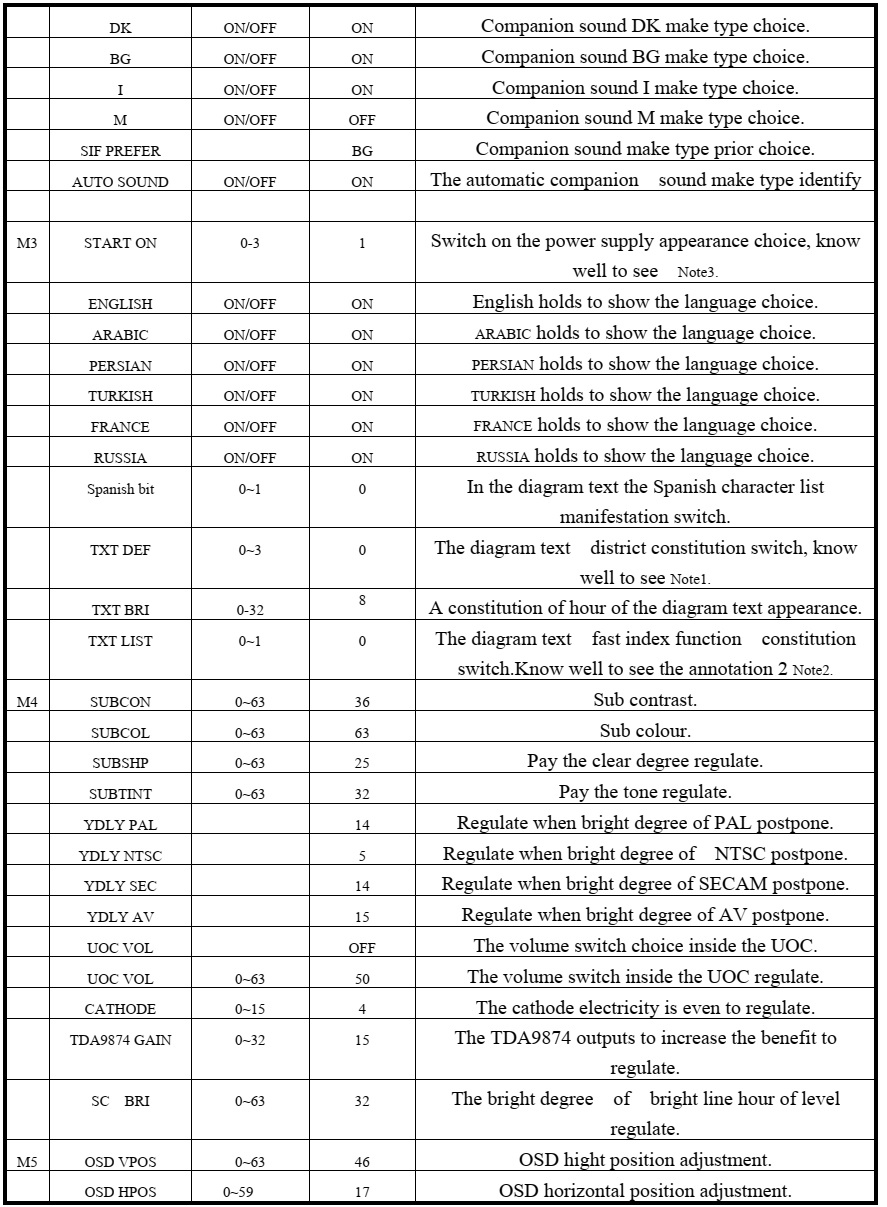
BUS control adjustment item default setting (21 inch)


Note1:
TEXT DEF : TXT_def = 0: Pan_Euro + Cyrillic
= 1: Farsi English + French + Turkish
= 2: Arabic + English + French + Turkish
= 3: UKRAINIAN
Attention:
When TXT_def=0, will appear" the TXT LANGUAGE" in the customer Setup menu, press V+/ V- key," the TXT LANGUAGE" will appear the following circulation: W- TR-> EAST1-> EAST2-> W- TR
The W- TR diagram text includes the following language:
English German Swedish/Fin/Dan/Hungarian Italian French Spanish/Portuguese Turkish
The EAST1 diagram text includes the following language:
Polish German Estonian Slovenian Czech/Slovak Rumanian
The EAST2 diagram text includes the following language:
Polish German Swedish/Fin/Dan/Hungarian Lettish Russian Slovenian Czech/Slovak Estonian
Note 2:
Make use of 4 color keys of the remote control, browse 4 pages of the enactment quickly, namely index function.
The TV/ AV sets the saving key for the index.
While using this function," the TXT LIST" establishes for" ON" in the customer menu.
Example: if want to use the color key of the red quickly 230 pages of enter the diagram text
The sequence press" TEXT"," red key","2","3","0" on the remote control," TV/ AV"
Note 3:
Switch on the hour appearance constitution
0: connect the AC power, enter to need the machine appearance automatically
1: connect the AC power, automatically switch on appearance
2: connect the AC power, if shut down the appearance as the diagram text
appearance, enter the diagram text appearance automatically.

Schematic diagram of the general UOC chassis


Thursday, November 11, 2021

LG LH-T7652SB, LHS-76SBC, LHS-76SBS, LHS-76SBW DVD-CD RECEIVER How to enter the service mode, Schematic diagram, Exploded view


Stereo mode 100W + 100W (Rated Output Power 100W, 4Ω at 1 kHz, THD 10 %)
Surround mode Front: 100W + 100W (Rated Output Power 100W, THD 10 %).  Centre: 100W
Surround: 100W + 100W
(Rated Output Power 100W, 4Ω at 1 kHz, THD 10 %)
Subwoofer: 200W (Rated Output Power 150W, 3Ω at 30 Hz, THD 10 %)

Be sure no power is applied to the chassis or circuit, and observe all other safety precautions

* NTSC model doesn’t have VCR option and use DVD option B~F as VCR option. (only DVD exist)
* PAL model has another separate VCR option. (Both VCR and DVD exist)

1) The pick-up incorporates a strong magnet, and so should never be brought close to magnetic materials.
2) The pick-up should always be handled correctly and carefully, taking care to avoid external pressure and impact. If it is subjected to strong pressure or impact, the result may be an operational malfunction and/or damage to the printed-circuit board.
3) Each and every pick-up is already individually adjusted to a high degree of precision, and for that reason the adjustment point and adjustment screws should absolutely never be touched.
4) Laser beams may damage the eyes.
 Never permit laser beams to enter the eyes.
 NEVER switch ON the power to the laser output part (lens, etc.) of the pick-up if it is damaged.

NEVER look directly at the laser beam, and don’t let contact fingers or other exposed skin.

Cleaning the lens surface
If there is dust on the lens surface, the dust should be cleaned away by using an air bush (such as used for camera lens). The lens is held by a delicate spring. When cleaning the lens surface, therefore, a cotton swab should be used, taking care not to distort this.  Never attempt to disassemble the pick-up spring by excess pressure. If the lens is extremely dirty, apply isopropyl alcohol to the cotton swab.
(Do not use any other liquid cleaners, because they will damage the lens.) Take care not to use too much of this alcohol on the swab, and do not allow the alcohol to get inside the pick-up.

Service mode entry for EEPROM

SMPS Schematic

Main board schematic


Cabinet and mainframe Exploded View


Sunday, October 31, 2021

Samsung HT-F4500 5.1CH Blu-ray Home Entertainment System- amplifier and SMPS schematic, How to insert the region code

 How to check the firmware version, How to update the firmware, How to initialize the set, Disassemble procedure, amplifier and SMPS schematic, How to insert the region code - Samsung HT-F4500  5.1CH Blu-ray Home Entertainment System

Disassembly

1. Unfasten 3 screws on the back and 2 on the sides.
Back : BH,+,B,M3,L10,ZPC(BLK),SWRCH18A
Side : BH,+,B,M3,L8,ZPC(BLK),SWRCH18A

2. Lift the top cover

3. Disconnect 2 FFC cables from deck and SMPS wire and fan wire and FFC cable from front assy.
Unfasten 3 screws on the Main PCB.
: BH,+,B,M3,L6,ZPC(WHT),SWRCH18A

4. Three screws on the back side.
: BH,+,B,M3,L10,ZPC(BLK),SWRCH18A

5. Disassemble and lift Main PCB

6. Lift up on the 3 hooks connecting the COVER-FRONT to the COVER-BOTTOM

7. Lift the 2 hooks on the side of the COVER-FRONT

To remove the FRONT-COVER all hooks must be disconnect at the same time and you should lift from the bottom and pull Up and away from the device.

8. The 4 hooks on the top will be loosened as you lift the FRONT-COVER from the bottom

9.  Unfasten 3 screws on the Front PCB.
: BH,+,B,M3,L10,ZPC(BLK),SWRCH18A

10. Unfasten the Assy-Deck by pushing the locking points on the side

11. Unfasten 5 screws on the SMPS

12. Unfasten 3 screws on the back side.
: BH,+,B,M3,L10,ZPC(BLK),SWRCH18A)
Remove the SMPS and Fan.

How to check F/W version

Method 1
- Step 1: Open the tray.
- Step 2: Press and hold “INFO” button on the remote for 5 seconds.
- Then, you will see below screen.

Method 2 (For only Back End version)
- Select Settings from the Home Screen.
- Support→ Contact Samsung
• Description for the meaning
- Front : System micom
- S/W : BACKEND Firmware
- Loader : Loader Firmware
- Region : BD region code / DVD region code
- Model : Model name

How to update firmware

The Software Upgrade menu allows you to upgrade the product’s software for performance improvements or additional services.
Never turn the product off or back on manually during the update process.
1) In the Home menu, select Settings, and then press the ENTER button.
2) Select Support, and then press the ENTER button.
3) Select Software Upgrade, and then press the ENTER button.
4) Select one of the following methods:
• By Online
• By USB
• Auto Upgrade Notification
5) Press the ENTER button. Directions for each method begin below.

The update is complete when the product turns off after restarting. Press the POWER button to turn on the updated product for your use. Never turn the product on or off manually during the update process.
• Samsung Electronics takes no legal responsibility for product malfunction caused by an unstable Internet connection or consumer negligence during a software upgrade.
• If you want to cancel the upgrade while the upgrade software is downloading, press the ENTER button.

[Never turn the product off or back on manually during the update process]

By Online

Your product must be connected to the Internet to use the By Online function. Remove all discs before you begin.
1) Select By Online, and then press the ENTER button. The Connecting to Server message appears.
2) If an update is available, a popup message appears asking if you want to upgrade. If you select Yes, the product turns off automatically, turns on, and then begins the upgrade.
 IMPORTANT
– Never turn the home theater on or off manually during a software upgrade.
3) The update progress popup appears. When the update is completed, the product turns off automatically again.
4) Press the POWER button to turn on the product.

The update is complete when the product turns off after restarting. Press the POWER button to turn on the updated product for your use.
• Never turn the product off or on manually during the update process.
• Samsung Electronics takes no legal responsibility for a product malfunction caused by an unstable internet connection or consumer negligence during software upgrade.

By USB
1) Visit www.samsung.com.
2) Click SUPPORT on the top right of the page.
3) Enter the product's model number into the search field, and then click Find Product.
4) Click Get downloads in the center of the page below the Downloads header.
5) Click Firmware in the center of the page.
6) Click the ZIP icon in the File column on the right side of the page.
7) Click OK in the pop-up that appears to download and save the firmware file to your PC.
8) Unzip the zip archive to your computer. You should have a single folder with the same name as the zip file.
9) Copy the folder to a USB flash drive.
10) Make sure no disc is inserted in the product, and then insert the USB flash drive into the USB port of the product.
11) In the product’s menu, go to Settings > Support > Software Upgrade.
12) Select By USB

There should be no disc in the product when you upgrade the software using the USB Host jack.
Never turn the product off or on manually during the update process.
When the software upgrade is done, check the software details in the Software Upgrade menu

Auto Upgrade Notification
If your product is connected to the network and you set Auto Upgrade Notification on, the product will notify you if a new software version is available with a pop-up message.
1) Turn on the product.
2) Press the ▲▼ buttons to move Settings > Support > Software update.
3) In the Software Upgrade menu, set Auto Upgrade Notification to On.
If there is a new software version available, the product will notify you with a pop-up message.
4) To upgrade the firmware, select Yes. The product turns off automatically, turns on, and then begins the upgrade.
5) The update progress popup will appear. When the update is complete, the product will turn off automatically again.
6) Press the POWER button to turn on the product

The update is complete when the product turns off after restarting. Press the POWER button to turn on the updated product for your use. Never turn the product on or off manually during the update process.
Samsung Electronics shall take no legal responsibility for product malfunction caused by unstable of internet connection or consumer negligence during software upgrade.

How to initialize the set [Cold Start Method]

1 ) This is useful for forgotten Parental Lock password.
2) It is possible to initialize B/END and System Micom at same time.
Method
1) Press “■” button on the front panel for over 5 seconds while ‘no disc’ status.
2) Then, VFD sign : “INIT” → Power will be turned off automatically

How to set the country region code

Inserting the Region Code after replacing the Main PCB

When replacing the MAIN PCB Ass’y, system micom IC(UIC1) should have proper region code.
The Set is not working properly if you don’t insert Region code.
The region code can be inserted by the remote control.

1.Change function mode to "AUX".
2. Press and hold "Tuner Memory" on the remote control for 4-5 seconds

3. The VFD will now say "T-MODE", you must quickly press the "▼" button during T-Mode status.

4. The VFD will now say TEST – – , now insert 46

5. The VFD will now read – – –. Insert the correct Region code based on the table below.
Ex: For USA Buyers you will type in 0 2 0


Wiring diagram

Pin connections of connectors

Amplifier and SMPS schematic


Friday, October 29, 2021

SONY KD-65AG9, KD-77AG9 Chassis GN5UR-SP-Self diagnostic, LED blinking codes and troubleshooting - Sony models KD77AG9, XBR77AG9, KJ55A9, KD55A9G OLED TVs


Sony GN5UR CHASSIS - KD-77AG9, KJ-77A9G, KD-77A9G, XBR-77AG9, XBR-55AG9, KD-55AG9, KJ-55A9G, KJ-55A9, KJ-65A9, KD-65A9, XBR-65A9G, KD-65A9G, KD-55A9G

Image retention
OLED TV’s are susceptible to image retention (burn-in) due to the characteristics of the materials used. Image retention may occur if images are displayed in the same location on the screen repeatedly or over extended periods of time. This is not a malfunction of the TV. Avoid displaying images that may cause image retention.
The following are examples of images that may cause image retention:
•Content with black bars either on the top and bottom and/or the left and right sides of the screen. (for example, Letterboxed, 4:3 screen, Standard definition)
•Static images such as photos.
•Video games that might have static content in some part of the screen.
•On-screen menus, program guides, channel logos etc.
•Static content from applications.
•On-screen tickers, such as those used for news and headlines.

To reduce the risk of image retention:
•Fill the screen by changing [Wide mode] to eliminate the black bars. Select [Wide mode] other than [Normal].
•Turn off the OSD (On Screen Display) by pressing the DISPLAY button, and turn off the menus from connected equipment. 

For details, refer to the instruction manuals for the connected equipment.


•Avoid displaying static images with bright colours (including white), clocks or logos on any portion of the screen.
•Set the picture settings based on the ambient conditions. The Standard Picture is recommended for home use and when viewing content that often displays the station logos, etc.
The TV has following features to help reduce/ prevent image retention.
Press the HOME button, then select [Settings] – [Picture & Display] – [Expert panel settings] – the desired option.

Panel refresh
Panel refresh will automatically run to adjust the uniformity of the TV screen after it has been in use for long periods of time.
Panel refresh can also be performed manually and should only be used if image retention is very noticeable or you see the following message:
[Panel refresh did not finish...]

Caution:
•The Panel refresh function may affect the panel. As a reference, perform the Panel refresh only once a year, do not perform it more than once a year as it may affect the usable life of the panel.
•Panel refresh takes about one hour to complete.
•A white line may be displayed on the screen during the Panel refresh, this is not a malfunction of the TV.
•Panel refresh will only work when the room temperature is between 10 ºC and 40 ºC.

Pixel shift
Automatically moves the image on the screen to prevent image retention.


IMPORTANT REMINDER FOR OLED PANEL REPLACEMENT
When carrying out OLED panel replacement, it is mandatory of a service center to confirm and record Panel ON time & Panel Refresh times.
It is because they are indispensable information in order to clarify responsibility for image retention after panel replacement.
Other feature
The screen brightness is automatically reduced when displaying still images, clocks, bright colours or logos etc.

SELF DIAGNOSTIC FUNCTION

The units in this manual contain a self-diagnostic function. If an error occurs, the Smart Core Red LED will automatically begin to flash. The number of times the LED flashes translates to a probable source of the problem.
A definition of the Smart Core Red LED flash indicators is listed in the instruction manual for the user’s knowledge and reference.
If an error symptom cannot be reproduced, the remote commander can be used to review the failure occurrence data stored in memory to reveal past problems and how often these problems occur. 

DIAGNOSTIC TEST INDICATORS
When an error occurs, the Smart Core Red LED will flash a set number of times to indicate the possible cause of the problem.
If there is more than one error, the LED will identify the first of the problem areas.
Result for all of the following diagnostic items are displayed on screen.
If the screen displays a “0”, no error has occurred.


Self Diag. Quick Reference (Not LED blinking [Record Only]))


Self Diagnosis service menu

Entry (Self Diagnosis Display)
- Go to the standby by a remote.
- Push the buttons sequentially:
<Display> <5> <Vol-> <Power>

Exit
-If you want to finish service mode app, do AC OFF/ON → Service mode app is disable perfectly
-if you want to move home menu, push <HOME>button → Service mode app do background(not disable perfectly)

Self Diagnosis Display


Self Diagnosis Display (CX/CS)


Self Diagnosis Display (SP only)


Retry Limitation by Remote/Power Key


TROUBLESHOOTING [CHASSIS:SP]

No Power u-com Failure


Wednesday, October 06, 2021

Panasonic SA-AKX74LM CD stereo system - How to enter the service mode, self diagnostic, Demonstration lock, D-amp and SMPS schematic, Power board error codes


Always respect voltages. It makes sense to avoid exposure to electrical shock.  While some sources are expected to have a possible dangerous impact, others of quite high potential are of limited current and are sometimes held in less regard.

Before Repair

  Disconnect AC power to discharge unit AC Capacitors as such (C5700, C5701, C5703, C5708) through a 10 Ω, 10 W resistor to ground.  DO NOT SHORT-CIRCUIT DIRECTLY (with a screwdriver blade, for instance), as this may destroy solid state devices.
After repairs are completed, restore power gradually using a variac, to avoid over current.

Fuse type: 8A, 125 V

  When the protection circuitry functions, the unit will not operate unless the power is first turned off and then on again.

Protection Circuitry
The protection circuitry may have operated if either of the following conditions are noticed:
* No sound is heard when the power is turned on.
* Sound stops during a performance.
 The function of this circuitry is to prevent circuitry damage if, for example, the positive and negative speaker connection wires are “shorted”, or if speaker systems with an impedance less than the indicated rated impedance of the amplifier are used.
If this occurs, follow the procedure outlines below:
1. Turn off the power.
2. Determine the cause of the problem and correct it.
3. Turn on the power once again after one minute.

 This product utilizes a laser diode with the unit turned “ON”, invisible laser radiation is emitted from the pickup lens.
Wavelength: 790 nm (CD)
Maximum output radiation power from pickup: 100 PW/VDE
Laser radiation from the pickup unit is safety level, but be sure the followings:
1. Do not disassemble the pickup unit, since radiation from exposed laser diode is dangerous.
2. Do not adjust the variable resistor on the pickup unit. It was already adjusted.
3. Do not look at the focus lens using optical instruments like convex lens or similar oblects.
4. Recommend not to look at pickup lens for a long time.

 The lead free solder has been used in the mounting process of all electrical components on the printed circuit boards used for this equipment in considering the globally environmental conservation.
The normal solder is the alloy of tin (Sn) and lead (Pb). On the other hand, the lead free solder is the alloy mainly consists of tin (Sn), 96.5%, silver (Ag) 3.0%, Copper (Cu) 0.5%, Cobalt (Co) / Germanium (Ge) 0.1 to 0.3%  Use the soldering iron (more than 70W) equipped with the temperature control after setting the temperature at 350±30 degrees C (662±86qF).

This model uses CD Mechanism Unit (BRS11C).

Micro-processor IC, IC2003 (MN101EF16KXW)

This model uses Speaker System, SB-AKX54, SB-WAKX74LM-K.

Service Mode

Cold-Start
Here is the procedure to carry out cold-start or initialize to shipping mode.
1. Unplug AC power cord
2. Press & hold [POWER] button
3. Plug AC power cord while [POWER] button being pressed
FL Display will show “ -------------“
4. Release [POWER] button.

DOCTOR MODE


Self-Diagnostic Mode & Self-Diagnostic Error Code Table
Self-Diagnostic Function  provides information on any problems occurring for the unit and its respective components by displaying the error codes. These error code such as U**, H** and F** are stored in memory and held unless it is cleared.
The error code is automatically display after entering into self-diagnostic mode.

Power Supply Error Codes 

CD Mechanism Error Code Table (CD Mechanism Unit (BRS11C)

Sales Demonstration Lock Function
Entering into sales Demo Mode
Here is the procedures to enter into Sales Demonstration Lock.
Step 1: Turn on the unit.
Step 2: Select to any mode function.
Step 3: Press [ Eject OPEN/CLOSE] key then [ Play/Pause] key at the same time, press and hold both [ Eject OPEN/CLOSE] and [Play/Pause ] keys for 5 sec.
Step 4: The display will show upon entering into this mode for 2 sec..

Note: [Eject OPEN/CLOSE] button is invalid and the main unit displays “LOCKED” while the lock function mode is entered.

Cancellation
Step 1: Turn on the unit.
Step 2: Select to any mode function.
Step 3: Press [ Eject OPEN/CLOSE] key then [Play/Pause ] key at the same time, press and hold both [ Eject OPEN/CLOSE] and [Play/Pause] keys for 5 sec.
Step 4: The display will show upon entering into this mode for 2 sec.

Common faults and defective resistors positions

Main PCB

D-Amp PCB

D-Amp circuit diagram (Schematic)


Panel schematic


Sub-woofer circuit diagram

SMPS (Power Board schematic)